Managed Services Change Orders
Use the Managed Services portal to request changes to AT&T managed network devices.
This guide shows you how to create and manage requests for changes to data, voice and managed services.
Get started
To access the AT&T Managed Services portal, choose one of these options:
-
Business Center > Portals > Managed Services
-
Business Center > Network > View All Inventory > Actions > Managed Services
Manage tickets
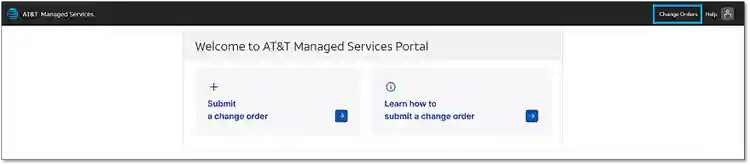
On the AT&T Managed Services portal welcome page, select Change Orders.
Create a ticket
-
Select the Tenants (organization), then select Create new.
-
From the Service Line, choose the service type and Logical change request.
-
Select an Asset ID. If the Asset ID isn’t listed, choose the default Asset ID from the service line, and click Select.
-
On the new ticket page, fill in all the necessary information for your ticket. Providing more detail can expedite the ticket approval process.
Although the number of fields in the form varies based on the ticket type. there are some common fields in most tickets:
-
-
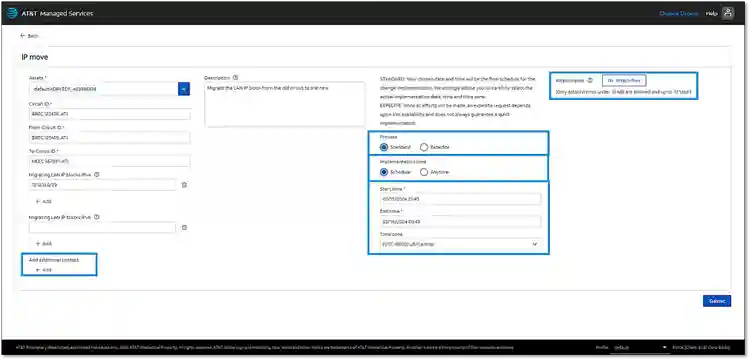
Add additional contact – Include contacts who will also be notified about ticket changes.
-
Process – Select the process type according to your ticket’s urgency. Choose Standard for regular processing or Expedite if your ticket needs immediate attention.
-
NOTES:
-
- Expedited processing may incur extra charges.
- Timeframe for implementation: Standard – 3 business days; Expedite – 1 business day
- Implementation time – Select Anytime to let the engineer decide when to implement or choose Schedule and enter a specific time.
- Attachments – Include any necessary files. Once you complete the form, select Submit.
Here’s a sample scenario for creating a ticket to generate a service request:
ADI Plus > LAN IP migration > IP move
The assigned engineer will respond within 24 hours, based on the urgency of the request. Alternatively, you can visit the Catalog page to view a list of change orders and select the type of Logical change request from the Service Line.
Manage a ticket
-
-
Header: Shows the ticket ID and a Refresh icon for viewing updated changes. You can use your ID to quickly search in the ticket list.
-
Stage: Shows your ticket’s current stage and provides an overview of the remaining steps.
-
Ticket information: Shows the information you entered, along with updates from the engineer.
If actions are required, action buttons will appear. To add notes to the ticket, type your message and select Submit
-
Ticket stages
You’ll receive emails with updates throughout the process.
-
Review
-
The ticket will move from Draft to Review when an engineer is assigned.
-
During the Review stage, you can wait for the engineer to implement the change or cancel the ticket.
-
If the engineer requires more information, the ticket returns to Draft. Provide needed information and select Complete.
-
Planned
- The ticket reaches the Planned stage when the assigned engineer accepts the ticket and is ready to work on it.
- Implementation
-
- On the scheduled date, the engineer begins making the changes and the ticket moves to the Implementation stage.
- Ready to Close
-
- The engineer moves the ticket to Ready to Close when the implementation is finished. If you’re satisfied with the results, you can close the ticket. If there are any problems, click Re-queue to send the ticket back to the engineer for follow-up.
Related content
- Change AT&T Dynamic Defense plan
- Add AT&T Dedicated Internet to a single location
- How to Run ADI Reports Using View IP Network Usage Reports
- AT&T Dedicated Internet (ADI) Technical Verification Checklist
- View and download an AT&T DNS Security Threat Intelligence report for your AT&T Dedicated Internet Service
- Remove AT&T Dynamic Defense from AT&T Dedicated Internet
- Add AT&T Dynamic Defense to AT&T Dedicated Internet
- How to order AT&T Dynamic Defense
- Order Service at Single or Multiple Locations for AT&T Dedicated Internet
- Make changes to AT&T Dedicated Internet Service
- ADI customer readiness & installation
- ADI Delivery and Installation: Welcome to your new service