View and download an AT&T DNS Security Threat Intelligence report for your AT&T Dedicated Internet Service
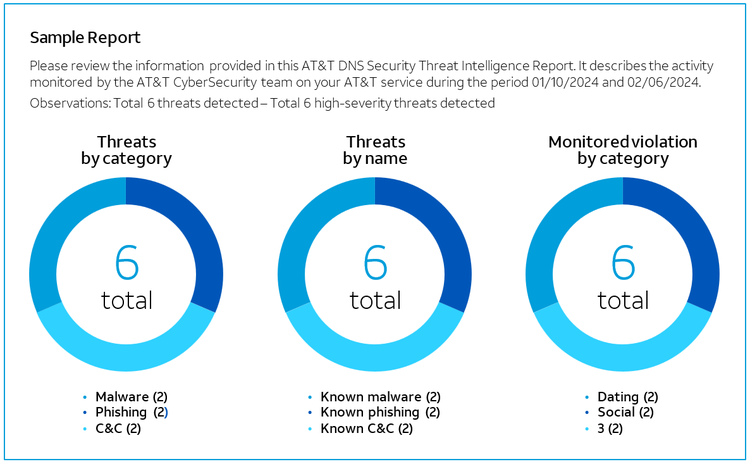
Included with your AT&T Dedicated Internet (ADI) service is AT&T Domain Name System (DNS) Security threat intelligence reporting. This free report shows where your internet traffic is destined. It also shows what internet risks your users may unknowingly expose your ADI circuit, which could disrupt your online operations.
Use the instructions below to turn on this feature. Once activated, you can access your DNS Security threat intelligence report in AT&T Business Center. See if the most prevalent internet threats such as phishing, malware, and ransomware are impacting your business.
When you know about risky internet activity on your port, you are armed in the first step to determine how to secure your business online.
To activate this monitoring feature, set your local DNS server or Active Directory server to forward DNS queries to the AT&T DNS addresses noted below. Typically, you configure these “forwarders” where you manage DNS or on the router associated with your AT&T Dedicated Internet Service.
To get help you get started, reference this How to Configure DNS Forwarding.

After you’ve completed the configuration, you can view the report after 24 hours.
- Go to the Network Inventory page:
- Business Center > Manage > Network > View All Inventory > Network Inventory
- Expand the location with AT&T Dedicated Internet from where you want to view and download a report, and then expand AT&T Dedicated Internet.
- Under Actions, click Download DNS report. The Select date range and IP address window opens.
Note: The date range is up to 30 days prior to the current date. - Select a start date and 1 IP address and then click Download Report. The DNS threat events by criteria page appears with your report details.
- To print the report or save it as a PDF file, click Print or Save.
If you’ve already upgraded to the Enterprise Traffic Protector (ETP) service, follow the QuickStart Guide provided in that welcome email and you may disregard this message.
Related content
- Change AT&T Dynamic Defense plan
- Add AT&T Dedicated Internet to a single location
- Managed Services Change Orders
- How to Run ADI Reports Using View IP Network Usage Reports
- AT&T Dedicated Internet (ADI) Technical Verification Checklist
- Remove AT&T Dynamic Defense from AT&T Dedicated Internet
- Add AT&T Dynamic Defense to AT&T Dedicated Internet
- How to order AT&T Dynamic Defense
- Order Service at Single or Multiple Locations for AT&T Dedicated Internet
- Make changes to AT&T Dedicated Internet Service
- ADI customer readiness & installation
- ADI Delivery and Installation: Welcome to your new service