About Trunk Call Routing
Trunk call routing streamlines call management in AT&T IP Flexible Reach by directing calls to designated groups according to a selected plan. This plan includes properties that determine call handling and destinations.
In the AT&T IP Flexible Reach Portal, you can view, create, edit, and delete trunk call routing schemes.
Note: You’ll need permission to edit trunk call routing schemes. Permission levels include View Only, View and Edit, and Hidden (trunk call routing not displayed). If you don’t have permission to update trunk call routing, contact your AT&T account representative.
Default Settings
-
When AT&T Enhanced IP Flexible Reach is set up at a location, phone numbers get a default trunk call routing plan and are assigned names that can’t be changed.
-
The names assigned to default trunk call routing schemes linked to a default group trunk group also can’t be changed.
-
The default trunk call routing has one main group for incoming calls. Calls can be sent to other groups by adding more groups, to use for rerouting calls.
Example of Default Settings
-
If AT&T IP Flexible Reach is installed at three locations within an enterprise, the Trunk Call Routing page shows three default trunk call routings.
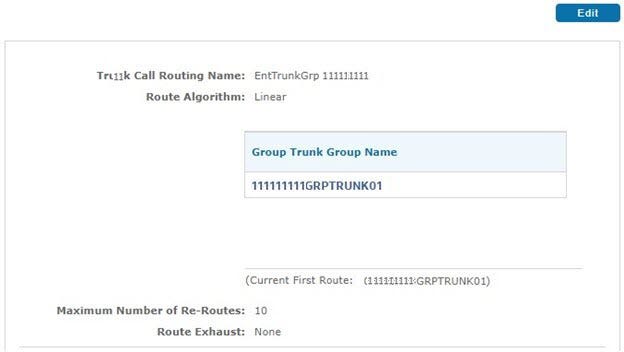
To view the group trunk group associated with a trunk call routing scheme, click the scheme's name.
Notes:
-
If you would like to create a more descriptive trunk call routing name, create a new scheme.
-
When new phone numbers are added, they are automatically assigned to the default routing scheme. Make sure to move them to the new scheme, since each phone number can only be in one plan at a time.
Routing Algorithms
Routing algorithms choose the order for sending calls through different paths and handle cases when routes reach their maximum capacity.
There are 4 primary algorithms to choose from when setting up trunk call routing schemes:
-
-
Linear
-
Round Robin
-
Percentage Allocation
-
Most Idle
-
Linear
-
The most basic routing algorithm is the Linear algorithm.
-
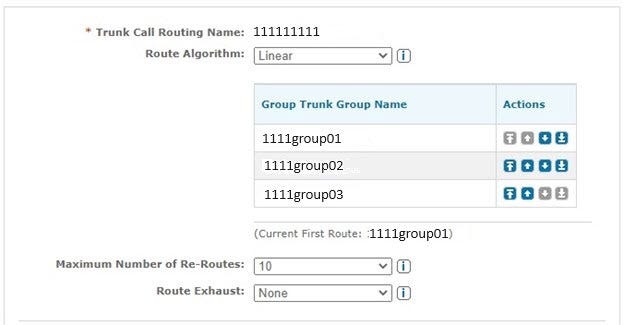
The Linear method decides the order for sending calls to trunk groups. If the first group is full or not working, calls go to the next group in line. This continues until each group reaches capacity.
-
To change the group trunk group order, use the icons in the Actions column.
-
A call moves between trunk groups based on the specified Maximum Number of Re-Routes.
-
Route Exhaust - If a call fails to connect after reaching this limit, the Route Exhaust setting determines its outcome. Set Route Exhaust to None for a busy signal or select Trunk Forward and provide a phone number for the call to be redirected to once the maximum reroutes are exhausted.
Example
An enterprise has two sites and wants to direct all incoming calls from Site 1 to Site 2 if Site 1 fails. With a linear scheme if Site 1 can’t handle a call, it gets routed to Site 2.
Round Robin
-
If a company wants to distribute incoming calls evenly among trunk groups, they can use the Round Robin method.
-
Like the Linear method, the Round Robin also goes through groups in order. But it shares calls evenly among all groups instead of waiting for one group to fill up before sending calls to the next one.
-
When setting up Round Robin, it's important to add the trunk groups to the plan in the order you want calls to be shared.
Example
A company has two Boston sites - Boston1 and Boston2 that serve their entire U.S. enterprise. Calls can be split between the sites: the first call goes to Boston1, the second to Boston2, the third to Boston1, and so on.
% (Percentage) Allocation
-
The % Allocation methods allows you to assign a portion of incoming calls to each trunk group in your plan. Calls are then routed to each group based on the percentage you assign.
-
If a group is full or not working, AT&T IP Flexible Reach picks the next group based on the % of the remaining groups.
-
If you remove a group from a % Allocation plan, IP Flexible Reach redistributes its % among the remaining groups in the plan.
-
When making a % Allocation plan, make sure your company can manage extra calls if some groups fail or reach capacity.
Notes:
-
-
% Allocation isn't available for default trunk call routing plans. To use a % Allocation plan, create a new trunk call routing plan, then add trunk groups to this scheme to establish a call path.
-
New phone numbers added to IP Flexible Reach are initially assigned to the default trunk call routing scheme. To incorporate these numbers into the percentage-based call path, transfer them to the new % Allocation trunk call routing scheme.
-
Example
A company has two call centers: Call Center 1 is smaller, and Call Center 2 is larger. The goal is to route 10% of call volume to Call Center 1 and 90% to Call Center 2.
First, create a new trunk call routing scheme using the % Allocation routing algorithm. Next, add the trunk groups for Call Center 1 and Call Center 2. Assign 10% to Call Center 1 and 90% to Call Center 2 when setting the percentages. The total allocation must always equal 100%.
Most Idle
-
The Most Idle algorithm directs calls to the least busy trunk group at any given time. Like other algorithms, it provides failover rerouting when the first trunk group in the scheme is unavailable or at full capacity.
-
Most Idle schemes help evenly distribute active call traffic across SIP trunks by counting active calls and routing new calls to the trunk with the fewest active calls.
Note: The Most Idle algorithm assumes that all trunk groups will never be operating at or near capacity.
Example
If a company has two call centers where Call Center 1 serves a part of the enterprise during a town hall meeting, that center has high call volume. Call Center 2, which serves the rest of the enterprise, is not busy. To allow Call Center 2 to assist with the heavy call traffic, set up a Most Idle scheme to reroute overflow traffic to Call Center 2.
Related content
- Manage a Trunk Call Routing Scheme
- Find Trunk Call Routing Schemes
- Create a Trunk Call Routing Scheme
- Edit a Group Trunk Group Profile
- Editing Support Email Addresses
- Edit Associated Trunk Call Routing Schemes
- Manage Group Trunk Groups in Trunk Call Routing Schemes
- Find Group Trunk Groups
- Reassign Users