Manage Administrators
Enterprise Administrators can assign roles, edit permissions, reset passwords, and delete profiles.
View your Admin Roles
Select an Enterprise ID.
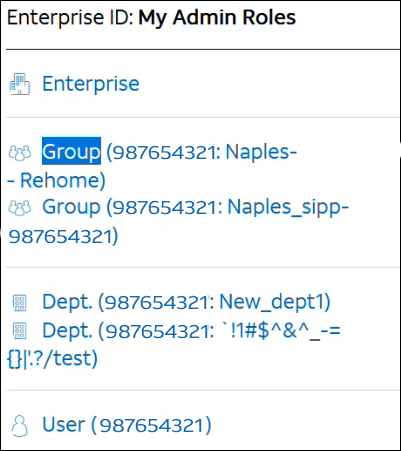
Note: An Enterprise Administrator can be assigned to multiple roles, including Group Administrator and Department Administrator.
Edit administrator permissions
You can only assign permissions that you currently have on your profile.
-
From the Administrator and User Profiles, find the administrator.
-
When you find the administrator, click View or View/Edit to open the Update Administrator Permissions page.
-
In Permissions: Tools and Applications, under Permissions:
-
-
To remove access for this administrator, select Deny.
-
To make this administrator an Enterprise Administrator, select Allow enterprise level (all groups).
-
To make this administrator a Group Administrator, select Allow group level, and then, in the Enter Group ID field, enter the group ID that will be associated with this administrator.
-
To make an administrator a Department Administrator, under Permissions, select Department level.
-
In the Enter Group ID field, enter the group ID that will be associated with this administrator.
-
In the Enter Department name field, enter the department name that will be associated with this administrator.
Note: Before you can create a Department Administrator, you must go to the portal and create the department. For details, see Create a Department [link to Create and manage a department to be added].
-
- In Permissions: Manage Administrators, under Permission Level:
-
-
To prevent this administrator from deleting other administrators, select Deny.
-
To allow this administrator to delete other administrators, select Allow.
-
-
Select Continue.
-
Verify that your information is correct, and then select Submit. To make changes, select Back. To discard all the information you've entered, select Cancel.
Reset an Administrator's Password
An Enterprise Administrator can reset another administrator's password.
-
From Administrator and User Profiles, find the administrator.
-
When you find the administrator, click Reset Password to open the User Password Reset page.
-
Select Reset Password to open the Confirm Password Reset page. An email is sent to the administrator, prompting them to reset their password.
Delete an administrator
-
Log in to Business Center.
-
From Administrator and User Profiles, you can select one of these options to find the Administrator.
-
-
Under Search for an Administrator, type an administrator's last name in the Last Name field and select Go.
-
Use the Advanced Administrators search. You can choose one of these options to find an administrator and select Go.
-
Update an Existing Administrator Profile
-
Profile Updates
-
-
- Select Delete to open the Delete Profile page, then select Delete again.
Related content
- Max DID Policing
- Edit Group Feature Access Codes (FACs)
- View and Download Public Number Ranges
- View call logs
- Manage Contacts
- Manage Access to the IP Flexible Reach Portal
- Create and Manage a Department
- View and Edit Group Information
- Find Administrators
- Search for users and update information
- About Users
- Manage inbound and outbound call features for users