Use the AT&T IP Flexible Reach Customer Portal
AT&T IP Flexible Reach is a trunking service that delivers an integrated access solution for the following environments:
- Time Division Multiplexing Private Branch Exchanges (TDM PBX)
- Internet Protocol Private Branch (IP PBX)
- Key analog systems
IP Flexible Reach can operate with the session initiation protocol (SIP), supporting inbound and outbound calling across the AT&T Internet Protocol (IP) network. It takes advantage of the AT&T Global Multiprotocol Label Switching (MPLS) network to provide local, nationwide, and international long-distance reach for U.S. sites.
AT&T provides Enhanced IP Flexible Reach Group Administrators with a portal for managing functions and features.
Customer Portal
The Customer Portal is where you can manage your group, group departments, group trunk group, users, and more.
To access the Customer Portal, first log in to Premier. On the Premier homepage, click View AT&T IP Flexible Reach Customer Portal home. The Customer Portal opens.
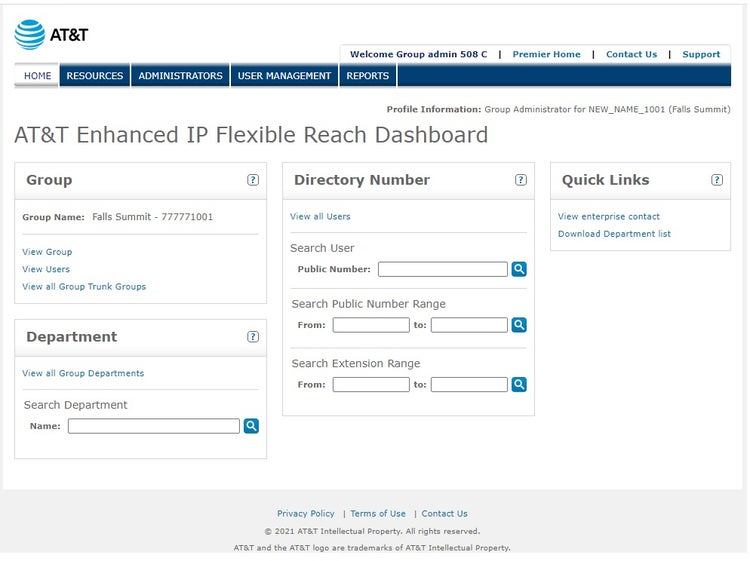
Navigation
To go to a specific page where you can manage resources, administrators, or users, click a tab on the menu bar at the top of the Customer Portal.
- To view group information and to manage your group, click RESOURCES. The Group page appears.
- To search for and view administrators, click ADMINISTRATORS. The Administrators page appears.
- To search for and manage users, click USER MANAGEMENT. The Users page appears.
- To go to the Premier home page, click Premier Home.
- To get help from an Enterprise Administrator, click Contact Us, which takes you to the Enterprise Contacts page.
- To get support, click Support, which takes you to the Administrative Portal Help page.
- To get back to the Customer Portal, click HOME.
Group
Use the Group tile on the Customer Portal to view and manage your group, and to go to the Group Trunk Group page.
- To view information about your group, click View Group.
- To view information about your group users, click View Users.
- To view information about group trunk groups, click View all Group Trunk Groups.
Directory Number
Use the Directory Number tile on the Customer Portal to search for a specific public number, a range of public numbers, or a range of extensions.
To view a list of users and their numbers
- In the Directory Number tile, click View all Users.
To search for a specific number
-
In the Search User Public Number box under Directory Number, enter a public number.
-
Click the magnifying glass icon (

). The results appear on the User page.
To search for a range of public numbers
-
In the Search Public Number Range in the Directory Number tile, enter a range of public numbers.
-
Click the magnifying glass icon (
). The results appear on the User Number Range page.
To search for a range of extensions
-
In the Search Extension Range in the Directory Number tile, enter a range of extensions.
-
Click the magnifying glass icon (
). The results appear on the User Number Range page.
To view all numbers
- At the top of the Directory Number tile, click View all Users. The main Users page appears.
Department
Use the Department tile on the Customer Portal Home page to view all departments or search for a specific department.
To search for a department
-
In the search box in the Department tile, enter a department name.
-
Click the magnifying glass icon (
). Results appear on the Department List page.
To view all departments
- In the Department tile, click View all Group Departments. The Department list page appears.
Quick Links
To get help from an enterprise contact or download a list of all the departments in the group, use the Quick Links tile on any page in the Customer Portal.
To get enterprise contact information
- Under Quick Links, click View enterprise contact.
To download a list of all departments
- In the Quick Links tile, click Download Department list.
Use the AT&T IP Flexible Reach Customer Portal: Related Topics
What a Group Administrator Can Do